
Integration: Connecting Trakstar Perform and Microsoft Teams
The Perform app and Microsoft Teams will allow your organization to send actionable notifications and reminders to users, similar to email notifications.
Prerequisites
Before enabling the integration, ensure the following:
- The admin authorizing the integration must have a work or school Microsoft 365 account (personal Microsoft accounts like @outlook.com or @hotmail.com will not work)
- Your organization's Microsoft 365 tenant must allow custom Teams apps (either through sideloading or the organization's app catalog)
- Some organizations require IT admin approval for new app integrations in Azure AD/Entra ID
Getting Started
Please note that the email addresses in Perform should match the users' Microsoft Teams sign-in addresses. If a user's Perform email differs from their Teams sign-in address, the system will attempt to find them by email, but this may not work in all configurations.
We recommend having a stable admin or service account authorize the integration rather than an individual user's account. The integration stores credentials tied to the authorizing user—if that user is disabled or leaves the company, the integration will need to be re-authorized.
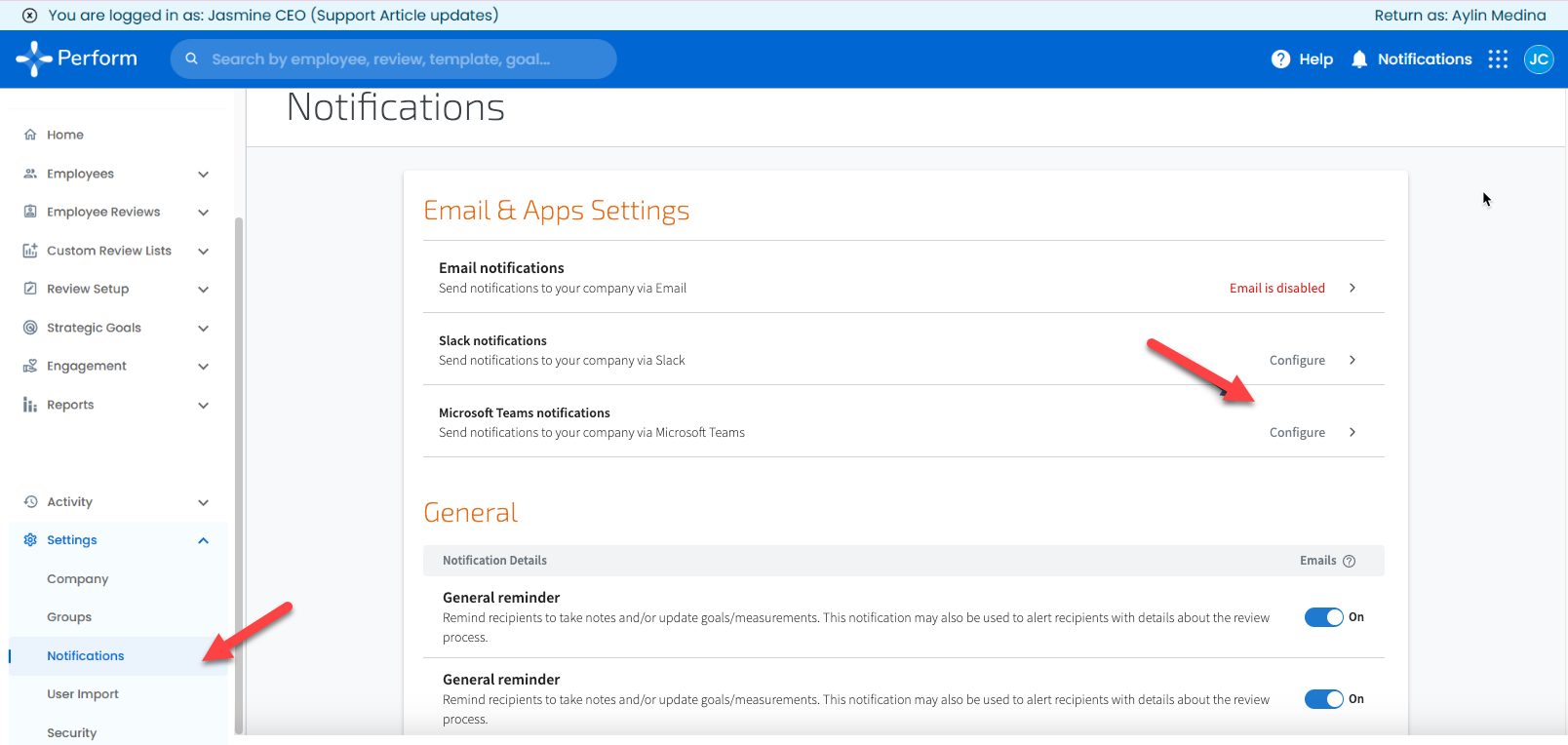
To enable the Microsoft Teams connection, a Perform admin must first enable the connection via Settings > Notifications.
Enabling the Teams Integration within Perform
The Perform admin can enable this integration within Perform via the Settings > Notifications page from the left navigation bar. From there, navigate to Microsoft Teams Settings, and click on +Enable Microsoft Teams Integration.
The admin will be redirected to Microsoft to sign in with their organization's Microsoft 365 account and accept the permissions. This connects Perform to your organization's Microsoft 365 tenant.
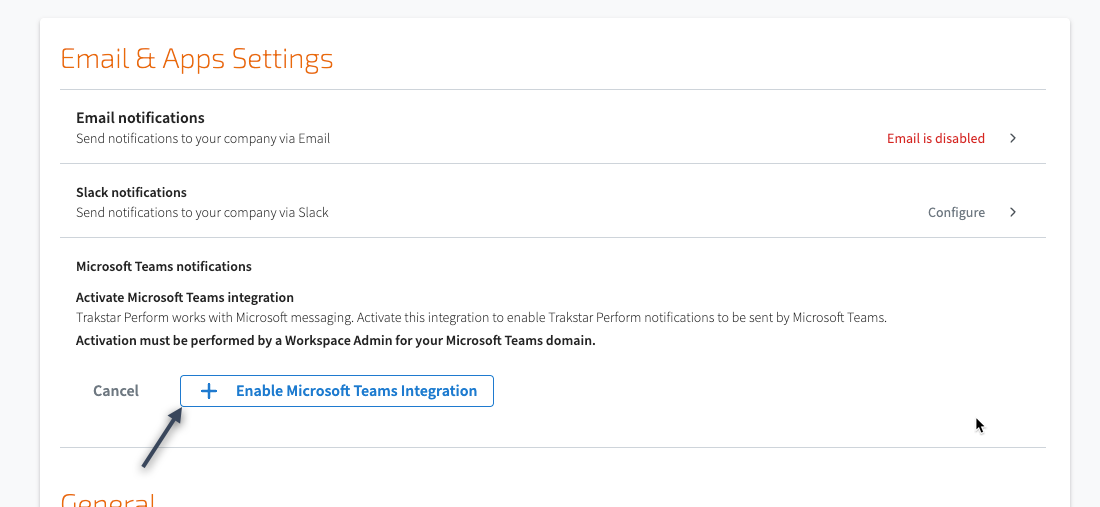
The user will be redirected to Microsoft Teams to accept the permissions and finalize the integration.
Installing the Teams App
After the integration is enabled in Perform, users need the Trakstar Perform app installed in Microsoft Teams to receive notifications. Your IT administrator can deploy the app organization-wide through the Teams Admin Center, or individual users can install it if your organization allows app sideloading.
Turning on Microsoft Teams Notifications
Now that your Microsoft Teams integration is connected, any admin can choose if you want to turn these notifications on via the Use Microsoft Teams notifications drop-down menu.
Managing Notifications & Reminders
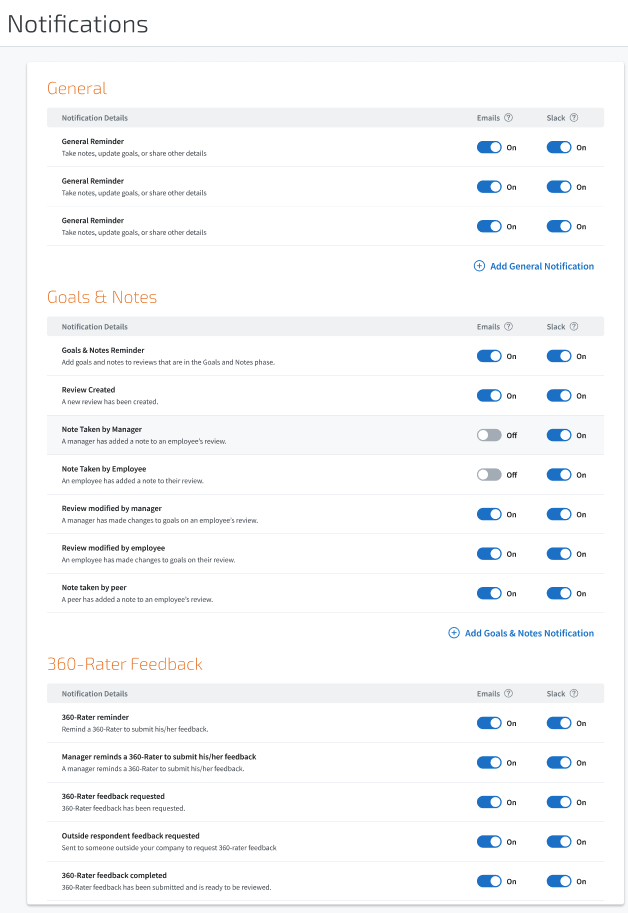
If you scroll down on the Notifications page, you'll see the option to toggle on or off many notifications and reminders in the system. You can choose which ones will be enabled for Microsoft Teams and which ones will be enabled for email.
Notifications vs. Reminders
Perform has both notifications and reminders within the system.
- Notifications alert a user of an event—such as letting a manager know an employee has written a note.
- Reminders advise a user of a task, usually relative to the due date—such as a manager being reminded when an employee has a past due review.
Both alerts will be sent to users via email or Microsoft Teams according to your organization's preferences.

Important: Notification alerts will be sent when the action happens (for example, when a note is taken), while reminder alerts will be sent at the time specified in your Email & Microsoft Teams settings. There may be a brief delay between the action in Perform and the notification appearing in Teams.
You can view the status of these notifications as they are being disseminated via Reports > Notification Log. The log has details on each notification, along with its status (Not Sent, Sent, or In Progress).
Troubleshooting
- User not receiving notifications: Verify the user has the Trakstar Perform app installed in Microsoft Teams and that their email in Perform matches their Microsoft Teams sign-in address.
- "User not found" error: The email in Perform doesn't match the user's Microsoft Teams sign-in address (UPN). Update the email in Perform to match their Teams sign-in address, or contact your IT admin to verify the correct address.
- "Need admin approval" error: Your organization requires IT admin consent for the integration. Contact your IT administrator to approve the Trakstar Perform app in Azure AD/Entra ID.
- "Custom apps disabled" in Teams: Your organization's Teams policies don't allow custom apps. Contact your IT administrator to enable the Trakstar Perform app in the Teams Admin Center.
- Integration stopped working: If the admin who originally authorized the integration has been disabled or removed from your organization, a new admin will need to re-authorize the integration via Settings > Notifications.
- Other issues: If you encounter any other difficulties enabling Microsoft Teams under Settings > Notifications, please reach out to Trakstar Perform Support for further assistance.