
How to Use Refine (AI Writing Assistant)
Refine: Get AI Help Polishing Your Review Comments
What is Refine?
Refine is a writing helper built into Perform. It's designed for one specific moment: you've already written a comment, note, or answer, and you want help making it clearer, better organized, or improving its tone before you save it.
Writing performance feedback is often the hardest part of a review. It's easy to get stuck wondering if a comment sounds too harsh, too vague, or just needs tightening up. Refine takes what you've already written and offers a polished version you can use, tweak further, or ignore entirely. You stay in charge of what actually goes into the review — Refine never saves anything on its own.
A few important things to know up front:
- Refine improves your writing - it doesn't write for you. You need to type something first. Refine reworks it; it doesn't generate a comment from nothing.
- It won't add new information. Refine can't invent names, dates, ratings, or examples that aren't already in your text. If you ask it to lengthen a short comment, it will build out the reasoning you've already given. It won't make something up to fill space.
- Nothing changes until you say so. Refine's suggestion appears in its own window below your comment. Your original text is untouched unless you choose to replace it.
Before you start: is Refine turned on?
Refine has to be turned on for your organization before anyone can use it. If you're an employee or manager, check with your admin to confirm it's available to your role. If you're an admin, here's how to turn it on:
- Go to Settings > Company
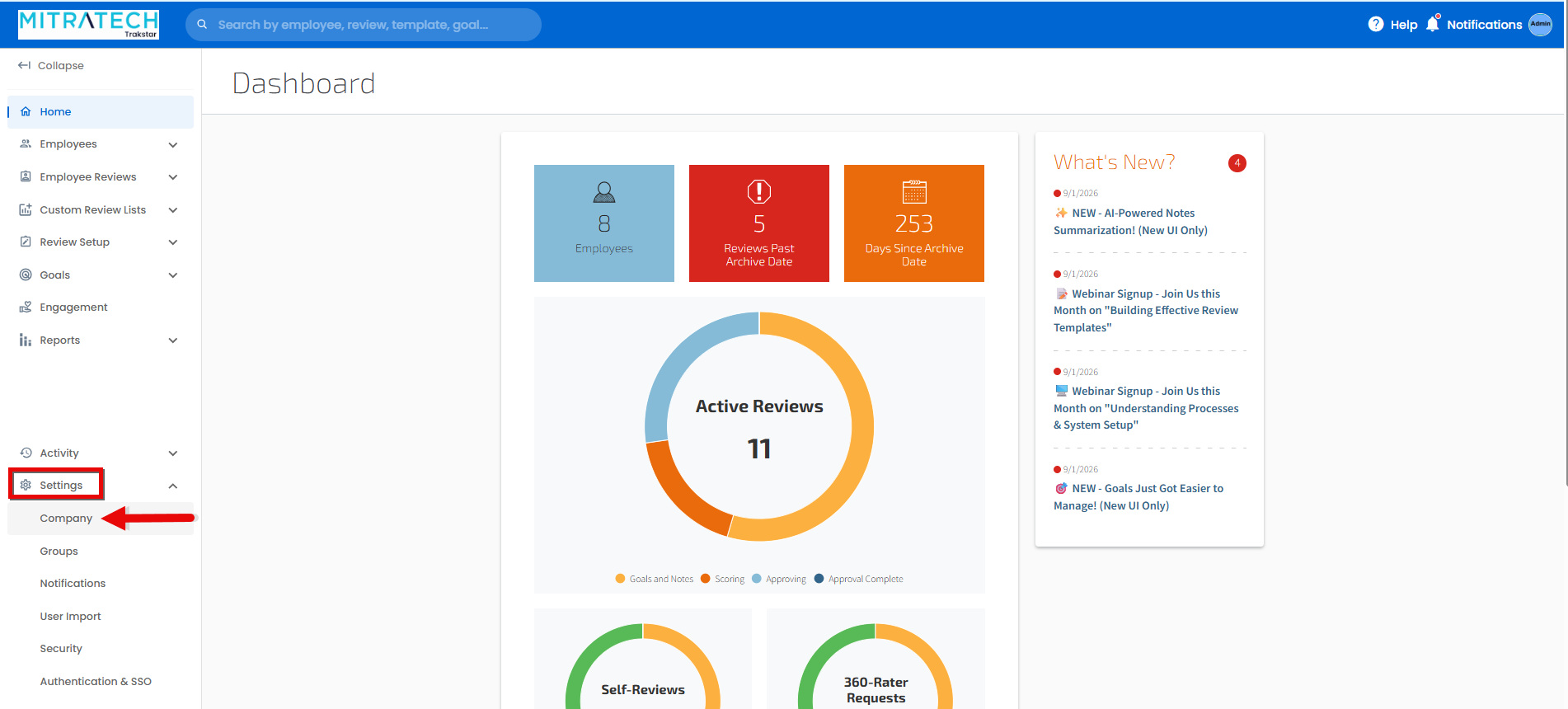
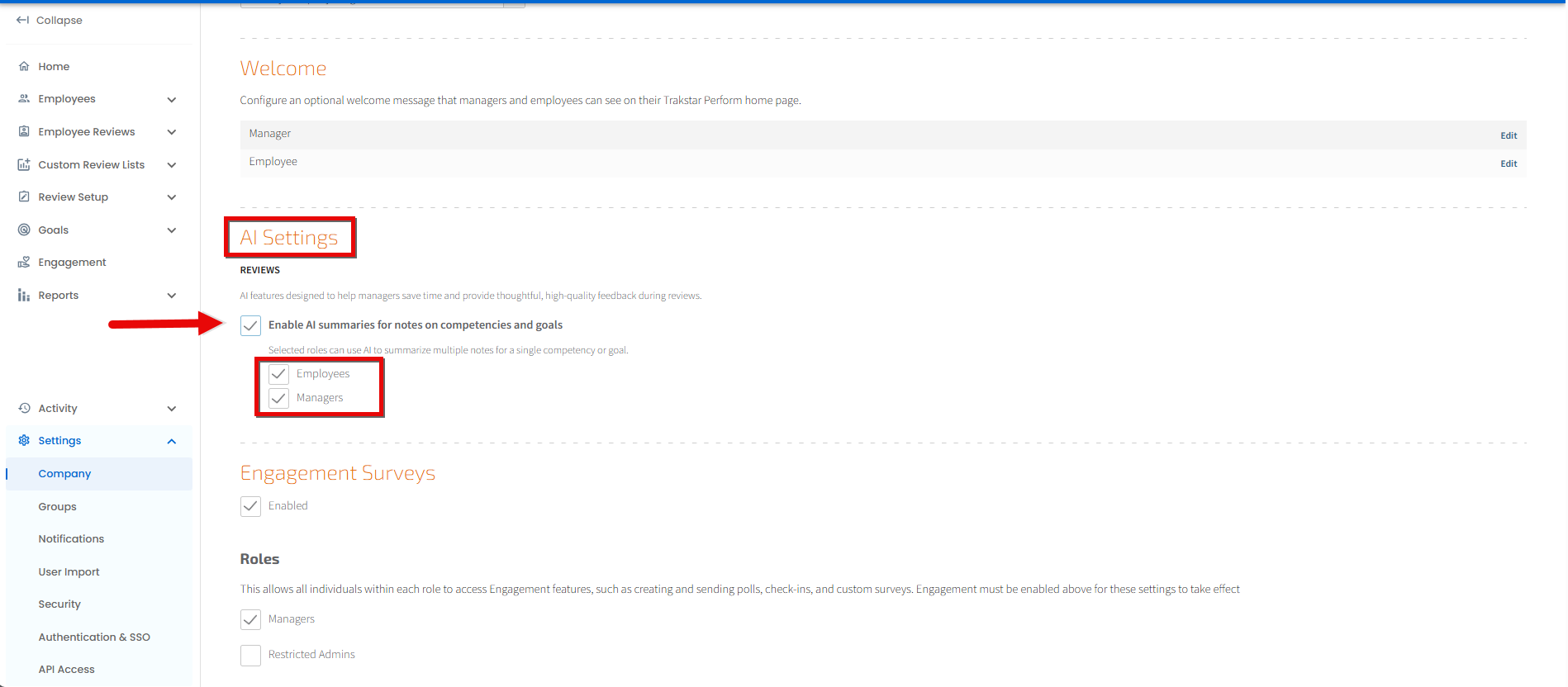
- Scroll down to AI Settings
- Click to Enable AI summaries for notes on competencies and goals.This is the Refine feature.
- Choose which roles can use it: Managers, Employees, or both. These are selected independently, and both are off by default.
- Save your changes.
If you turn Drafting Assistance off and back on later, the role selections reset to off, so you'll need to choose them again.
If you don't see Drafting Assistance as an option in Company Settings at all, the feature hasn't been enabled on your account yet. Reach out to your customer success manager for details.
Where you'll find Refine
Refine is available anywhere you're writing text during a review, including:
- Comments on competencies and goals, whether you're writing a new one or editing an existing one
- Notes you add through the New Note option
- Open-ended question responses within a review
How to use Refine
- Start writing your comment, note, or answer as you normally would.
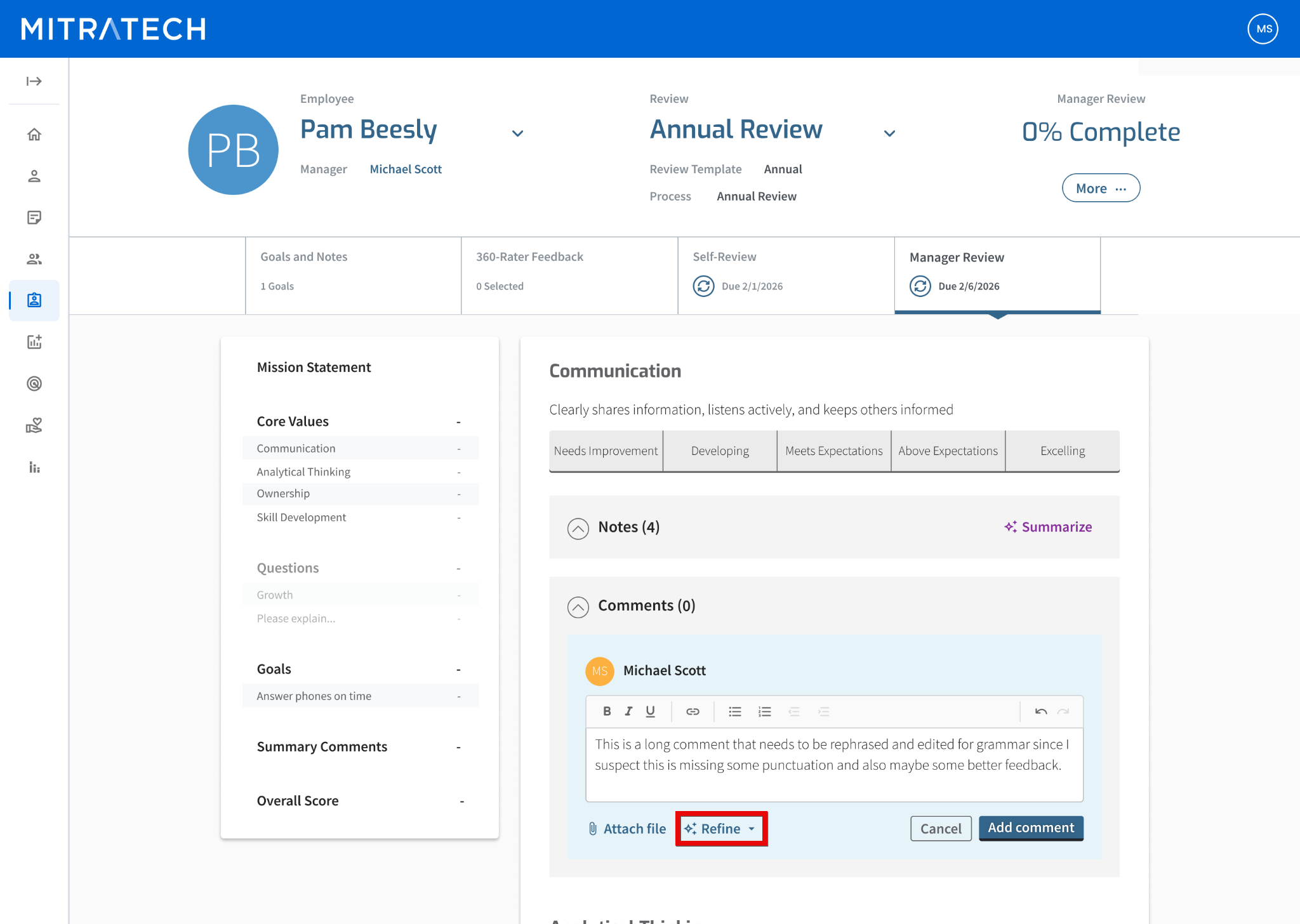
- Once you've typed something, click Refine, located at the bottom of the text box next to the attach file option.
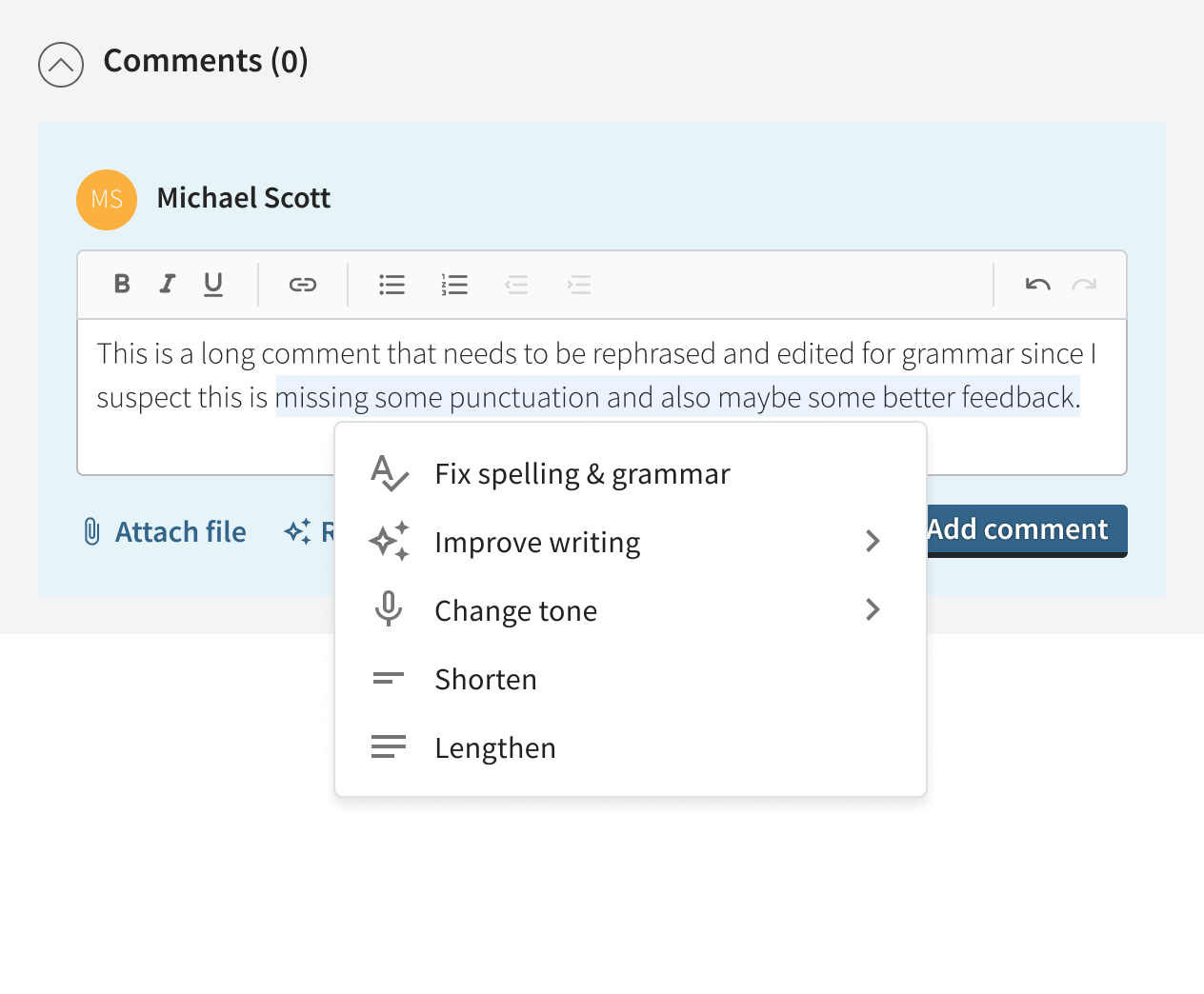
- Choose what you'd like Refine to do:
- Fix spelling & grammar - corrects mistakes without changing your wording or tone.
- Improve writing - you'll then choose to make it clearer and more actionable, improve the structure and flow, or simplify the language.
- Change tone - you'll then choose constructive and professional, objective and unbiased, or friendly and supportive.
- Shorten - condenses your comment.
- Lengthen - builds out the points you've already made with more explanation and detail.
- Wait a moment while Refine prepares a suggestion. It will appear in a window below your original text.
- Review the suggestion. You can:
- Click Replace to put the new text into your comment.
- Click Refine again to try a different option on the same text.
- Click Discard (or the ×) to close the window and keep your original comment unchanged.
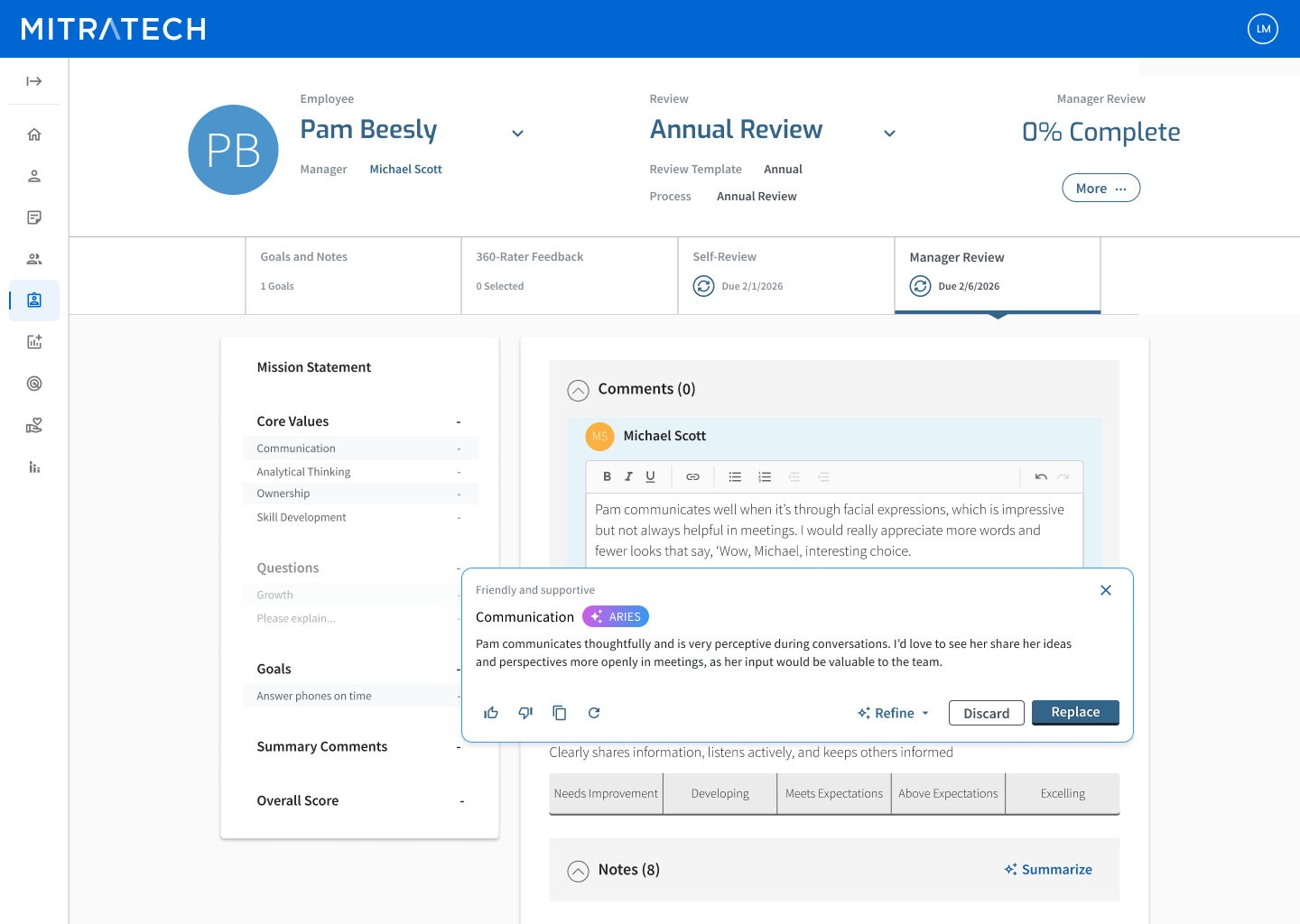
- Once you're happy with your comment, save it as you normally would. Refine only updates the text in the box. It doesn't save anything to the review on its own.
Tip: If you only want to change part of a comment, highlight that portion of the text before clicking Refine. Your suggestion will apply only to the highlighted section, and the rest of your comment will stay exactly as you wrote it.
Trying a few versions
You don't have to get it right on the first try. A few things to know about working with suggestions:
- If you ask for the same option again on the same text, Refine shows you the result you already saw instead of generating a new one.
- If you try a different option, your earlier suggestions are still there. You can scroll back through them rather than losing your place.
- Each comment or note keeps its own separate set of suggestions, so refining one comment won't affect another.
- You can rate a suggestion with a thumbs up or thumbs down, or copy it to your clipboard, using the small icons in the response window. Ratings help us understand which suggestions are useful and aren't visible to anyone else or shown anywhere in your review.
Keep in mind that your suggestions aren't saved permanently. They're cleared once you replace your text, save or cancel your comment, or navigate away from the page. If you want to keep a version you're not ready to use yet, copy it somewhere safe before moving on.
What Refine can't do
- It can't create a comment from an empty text box. There has to be something there to work with.
- It can't add facts, figures, names, dates, or accomplishments that weren't already in your writing.
- It doesn't look at anything else in the employee's record, like goals, past reviews, or other feedback; only the text in front of it.
- It can't change a rating, score, or completion status. It only touches text.
- There's no option to type your own custom instructions. You'll choose from the menu options available.
- It works on one comment or field at a time. There's no way to refine an entire review at once.
How your content is handled
Refine is built with a few safeguards in mind:
- It's instructed not to introduce new claims; it can only work with what you've written.
- Every request is automatically screened for inappropriate content, and sensitive personal information is masked in the results.
- AI interactions are regularly reviewed for quality against our internal standards.
- Your formatting - bold, italics, underlining, and lists - carries over when you use Refine.
- Refine is available in all supported languages, not just English.
For more detail, look for the AI disclaimer link in the review interface, which points to our full AI Features FAQ.